
How to use image import in the Scanned Model Importer
The image import feature lets you turn a suspension image into a mapped model that can be imported into the Suspension Geometry Calculator for analysis.
Uploading an image, mapping the nodes and saving the model are free features, but you must subscribe to upload it into the Suspension Geometry Calculator for analysis.
1. Open and upload the image
- Open the calculator.
- Click Scan.
- Click Upload.
- Drag the image file into the uploader.
- Upload the image.
The background colour may change to match the image. If the wireframe becomes hard to see, open the setup icon and change the foreground, background, node, or hub colours.
2. Map the suspension nodes
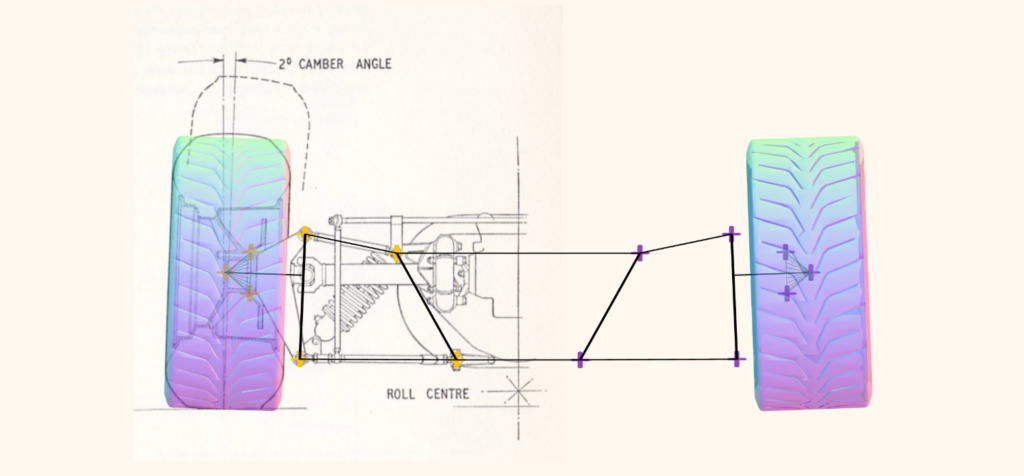
Drag each node onto the matching suspension point in the image, such as the spherical bearings, ball joints, wheel centre, and hub face.
The wheel centre can be identified because the cone visualisation changes when you move it. The hub face nodes help set rim offset and camber.
Use Node attached so the nodes rotate with the drawing. Use Node locked to prevent accidentally moving mapped nodes.
3. Mirror the model if needed
If the image only shows one side of the vehicle:
- Go to Nodes > Mirror.
- Move the mirror line using the bar at the bottom.
- Align it with the centre line of the drawing.
- Choose left-to-right or right-to-left mirroring.
- Close the mirror tool when happy.
4. Set the scale
Before adding wheels, give the image a scale:
- Choose a known measurement on the image.
- Enter the real dimension.
- The importer will use that one measurement to scale the rest of the drawing.
5. Add and adjust wheels
Add the wheel diameter in millimetres. Then adjust:
- Wheel width
- Offset
- Wheel centre
- Hub face position
- Camber
Use zoom to align the wheel outline as closely as possible with the image.
6. Import into the Suspension Geometry Calculator
When the image is mapped, scaled, mirrored, and the wheels are aligned:
- Click Import.
- Import the mapped model into the Suspension Geometry Calculator.
- Use the calculator to analyse the suspension, including roll centre.
Video
Feature Matrix
| Guest | Free | Subscribed | AAA | |
|---|---|---|---|---|
LOGIN or SIGNUP to move to next tier | Subscribe to move to next tier | Thank's for your support. | Thank's for your support. | |
| Import an Image |  | |  | |